3 Free PhoText Alternatives to Edit Text in Images Without Watermarks
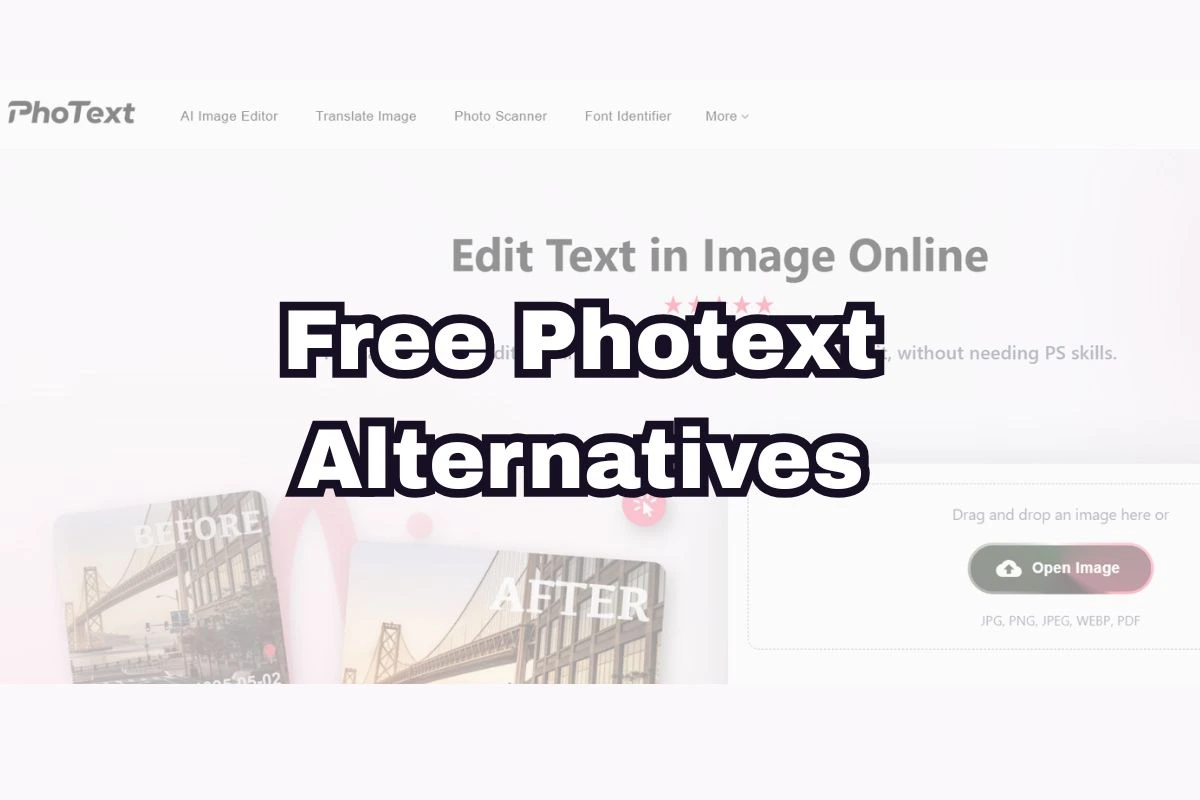
PhoText is a simple tool that lets you click directly on text inside an image and edit it no Photoshop skills needed. The problem? Once you’re done editing, it slaps a watermark on your download and asks you to pay to remove it. That’s frustrating, especially for a quick edit.
The good news is there are free alternatives that do the same job and let you export clean, watermark-free images. Here are the 3 best ones:
1. EZRemove AI Image Text Editor
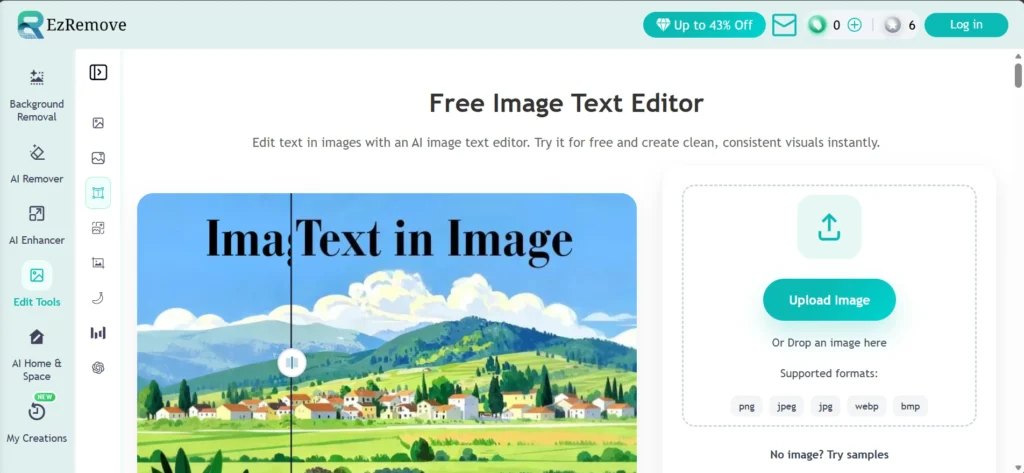
EZRemove is one of the best free alternatives to Photext out there. It lets you edit, replace, and remove text directly inside any image and download the result completely clean, with no watermark added.
How It Works
Upload your image (JPG, PNG, WEBP, or BMP), then choose between two editing modes. The AI Detection tab automatically scans the image and identifies text blocks you can replace.
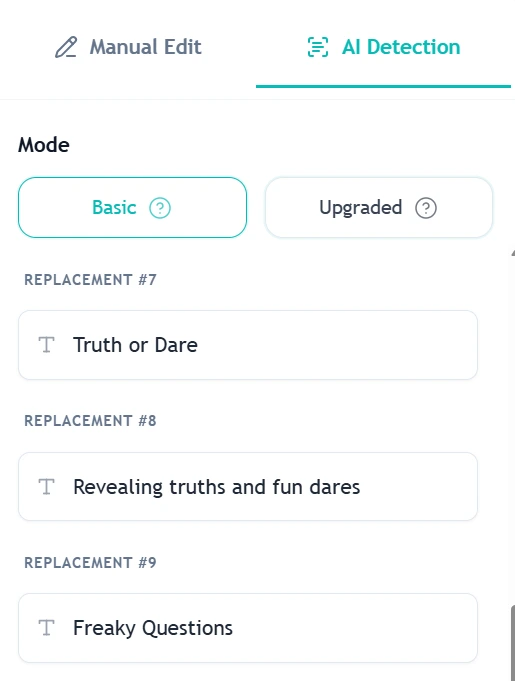
If you need more control, say editing text inside a logo or a complex graphic the manual edit tab lets you replace the text around the area you want to change. Type your new text, click generate, and the AI reconstructs everything: the font, the background, and the surrounding texture.
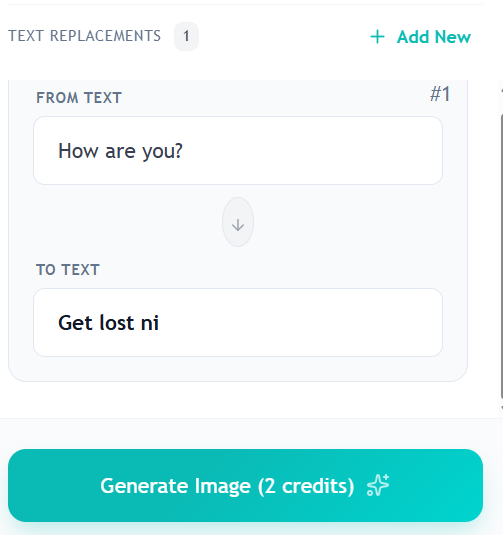
What makes EZRemove stand out is that it gives you access to multiple AI models, each with different strengths, so you can pick the right one for your edit.
Nano Banana, built specifically for image editing tasks. It excels at understanding complex, multi-step instructions and is particularly good at maintaining character and object consistency across edits.
GPT Image 2 is available on the platform for users who need precise, high-quality edits with strong instruction-following.
SeeDream 4.0 is the model highlighted for e-commerce and marketing use cases. It supports editing at up to 4K resolution, making it a solid choice when you need to update prices, slogans, or product text on high-resolution images and need the output to hold up at full quality.
What You Get for Free
EZRemove provides a set of free credits daily that refresh automatically. The free tier supports HD exports with no watermark. If you run through your daily credits, paid top-ups are available, but for most casual or moderate users the daily free credits are more than enough.
2. Screenshot Editor Online
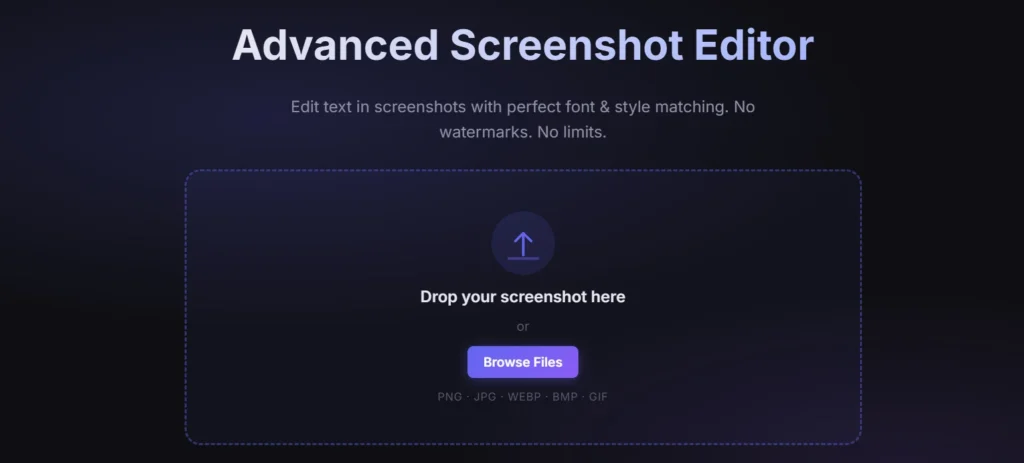
Screenshot Editor Online is the most direct free alternative to PhoText available right now. Every single feature is free, exports have zero watermarks, and there’s no account, no credits system, no catch nothing (honestly). Just upload your image and start editing.
The standout feature is OCR-powered text detection. Click on the detect text button and the tool automatically scans your image, identifies all readable text regions, and marks them as editable layers. You can then click directly on any detected text block and replace it no drawing boxes and no guessing coordinates. This is the same kind of click-to-edit screenshot experience PhoText offers, except here it’s completely free.
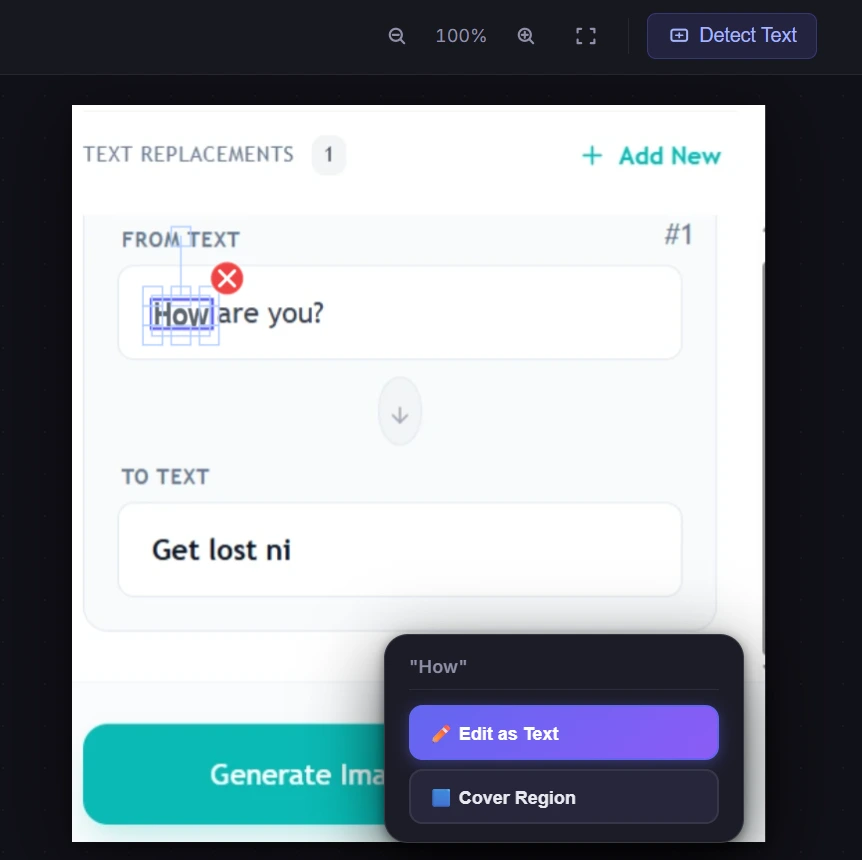
For text the OCR might miss say, stylized fonts, logos, or small print you can manually cover the region and add new text on top with full control over font, size, color, style, and background.
We are still improving
The tool works well for the majority of everyday editing tasks right now, but we are continuously pushing updates to improve OCR accuracy, font matching, and overall performance. So, if you try it and find that a particular font isn’t detected perfectly or a complex background isn’t reconstructed exactly as you’d expect, that’s not a sign of neglect it’s a sign of a tool that’s being actively refined based on real user feedback.
This is actually one of the more promising things about Screenshot Editor Online compared to the other tools on this list. Established platforms tend to move slowly, patch bugs on their own schedule, and prioritize paid users first. A tool in active development like this one tends to be far more responsive issues get fixed faster, features get added based on actual use cases, and the experience improves meaningfully from one update to the next.
3. Clipfly AI Image Text Editor
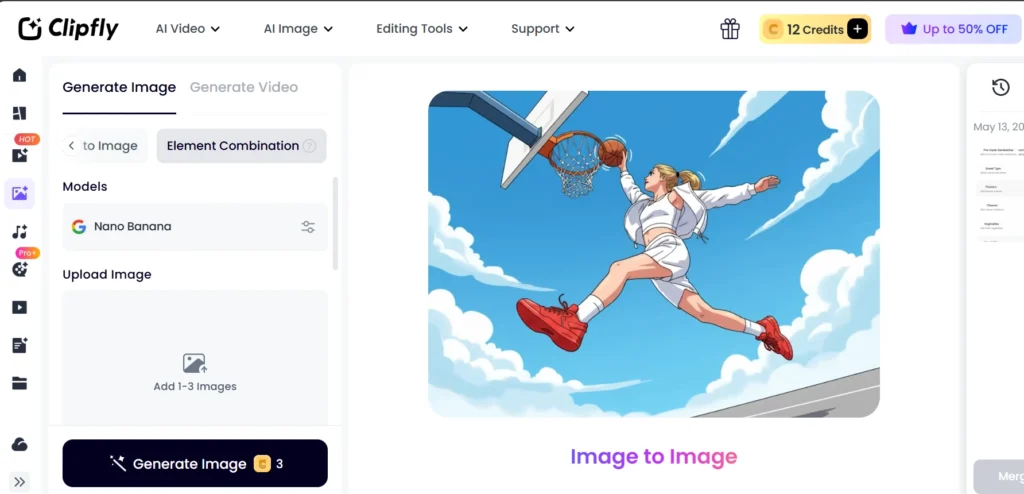
Clipfly is a broad AI creative platform covering video, images, and music but its image text editor stands on its own as a genuinely capable free tool. It offers full-featured text editing with no fees, and high-resolution, watermark-free downloads, keeping fonts, colors, and alignment perfectly consistent across edits.
How It Works
Clipfly takes a prompt-based approach to text editing, which is slightly different from tools like Screenshot Editor Online or EZRemove. Rather than clicking directly on text, you describe what you want changed in plain language or prompt. The AI instantly detects and edits the word in your image, and you can remove or replace unwanted text while keeping the formatting and layout seamless.
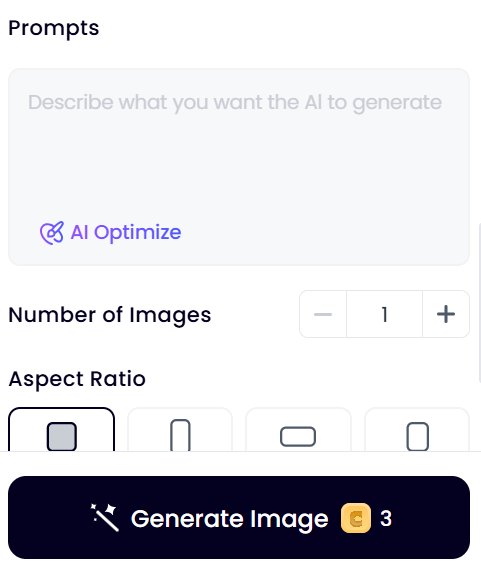
For font preservation specifically, all you need to do is specify “keep original font and style” in your prompt, and the AI will edit the text without affecting the original appearance.
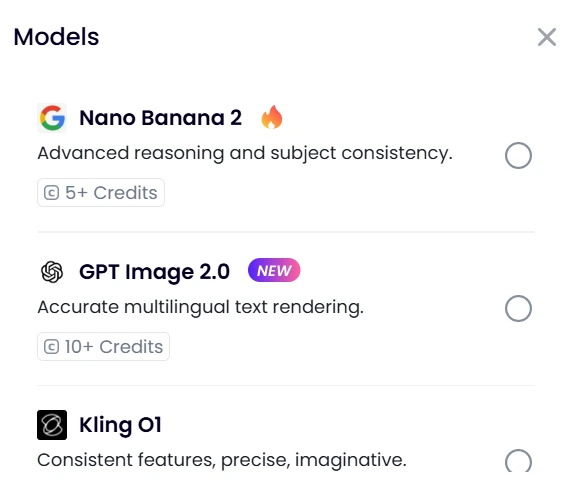
Clipfly’s image tools are powered by multiple AI models including Nano Banana, Seedream, Qwen, Flux, and more the same generation of models found on EZRemove. This multi-model backbone is what allows Clipfly to handle a wide range of image types and complexities, from clean product shots to busy patterned backgrounds, without a one-size-fits-all approach
Clipfly provides daily free credits to create and download results without watermarks. Like EZRemove, this is a credits-based free model rather than fully unlimited, but the daily replenishment means regular users can get consistent work done without paying.
Use Nano Banana Directly
Both Clipfly and EZRemove are actually built on top of the Nano Banana API. That means when you use them, you’re already using Nano Banana under the hood, just wrapped in their interface. You can go straight to the source and use Nano Banana directly inside Google Gemini for free. Upload your image, describe the text change you want in your prompt, and Gemini handles it.
It is quick and gives accurate results. But if you want to actually click on the text and edit It you can use the Screenshot Editor Online. Prompting an AI to edit text and directly editing text in an image are two very different experiences. With Gemini or any prompt-based tool, you describe what you want and hope the output matches your expectation.
If you want that direct, hands-on editing experience, Screenshot Editor Online is the tool built for exactly that. Upload your image, click detect Text, and every readable text region in your image becomes a clickable, editable layer. Click the word you want to change, type the replacement, adjust the font and color to match, and export clean watermark free.